How to Format an SD Card in GoPro HERO10 Black Without Skipping the Backup
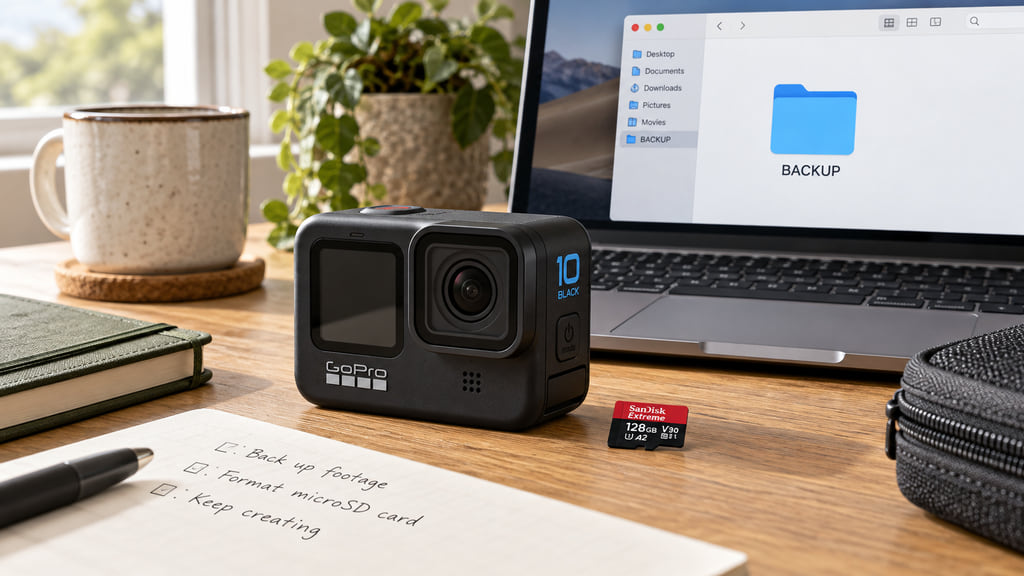
Formatting your GoPro HERO10 Black's microSD card erases the media on it. Back up your videos and photos first. Then, on the camera's rear screen, swipe down, swipe left, and choose Preferences → Reset → Format SD Card. Read the camera's confirmation before you proceed.
This guide follows the HERO10 Black English user manual, Revision B. It covers the camera's own formatting controls, a practical backup check, and what to do when an error needs more than an empty card. It doesn't borrow menus from another HERO generation or assume that formatting can recover lost footage.
Back up your files before formatting
Start with the files, before opening the Reset menu. GoPro's HERO10 Black manual describes transferring media to a computer with a card reader on printed page 95. Turn the camera off before removing the card; use a suitable reader or adapter and copy the files to your computer. Copying keeps the card as your original while you check the transfer.
Make a clearly named destination folder so you can find this recording session again. Wait for the copy to finish, then open important photos and play important clips from that destination. Check that you're playing the computer copy rather than a file still on the removable card. A folder existing on the laptop isn't, by itself, evidence that every clip arrived.
For irreplaceable footage, consider keeping another copy on a separate storage device before erasing the card. That's a precaution we recommend, rather than a camera menu requirement. If the card isn't readable and the missing files matter, stop here. Formatting is not a recovery procedure, and this guide doesn't promise that erased or damaged recordings can be restored afterward.
Before you open the menu
Check that the camera is a HERO10 Black. Check the card too: the camera uses microSD media, even though people often shorten the phrase to “SD card.” A full-size SD adapter helps connect a microSD card to a reader; it doesn't fit into the camera's microSD slot. Handle the card with clean, dry hands, as GoPro advises.
Use the requirements for this model and consult GoPro's microSD card guidance when checking a replacement. Formatting doesn't change a card's speed rating or make unsuitable hardware suitable. This is a preparation guide, not a ranking of card brands or a buying guide based only on the largest number on a package.
| Check | Ready to continue | Reason to stop |
|---|---|---|
| Backup | Important copied files open from their destination. | The card holds your only wanted copy. |
| Camera | The model is HERO10 Black. | You need instructions for a different model. |
| Card | A suitable microSD card is seated correctly. | The card is damaged, unreadable, or unsuitable. |
| Power | The camera has enough charge for the task. | It is about to shut down. |
Finish any recording before preparing the camera. If you removed the card for the backup, follow the manual's installation instructions when returning it: camera off, battery removed, card label facing the battery compartment. Restore the battery and close the door securely. Don't force the card or improvise a different slot orientation.
Follow the HERO10 Black menu in order
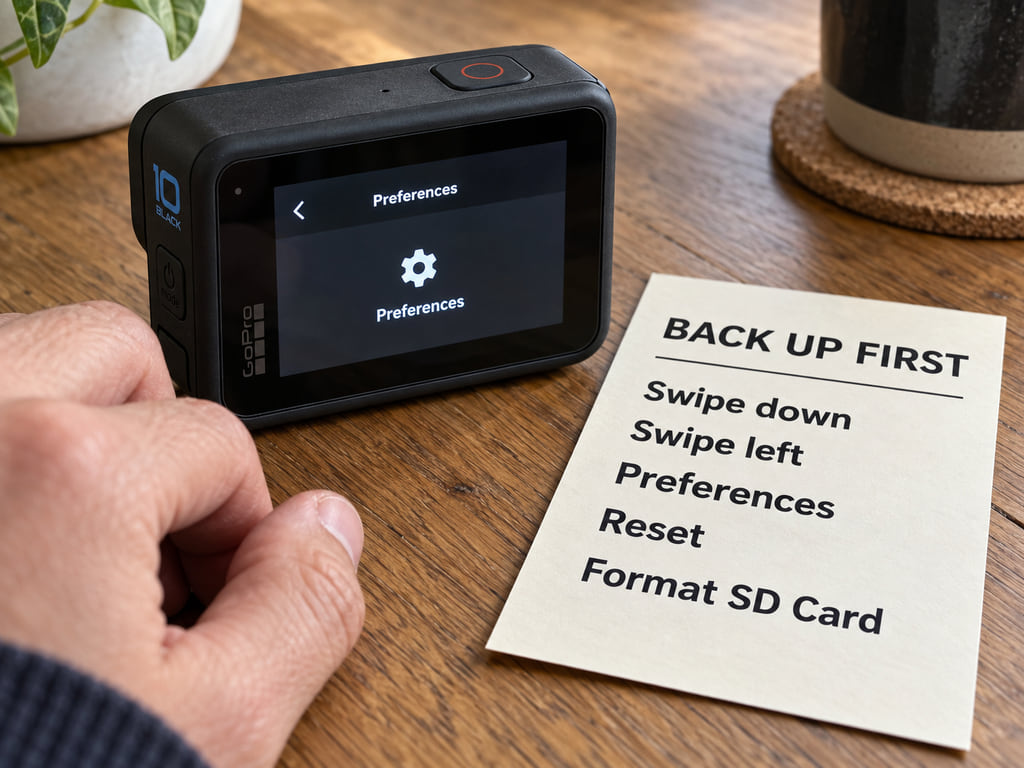
With the backup checked and the card installed, turn on the camera. Use the rear touch screen for the following sequence. The menu path comes from printed page 8 of the HERO10 Black manual; the steps below separate its gestures so you can follow them without jumping directly to an erase command.
- Swipe down from the top of the rear screen to open the Dashboard.
- Swipe left to reach the panel containing Preferences.
- Tap Preferences.
- Open Reset.
- Select Format SD Card.
- Read the on-screen confirmation. Continue only if you've saved everything you need and intend to erase the card's media.
Let the operation finish before moving on. Don't choose a nearby reset option just because its name sounds similar. The Reset section also contains settings-related controls; formatting the card is a specific action. If your screen doesn't match this path, check your model and its manual before selecting another command.
You don't need to begin with a computer's disk utility for this camera-menu procedure. Computer formatting is a separate workflow with its own device-selection risks. A prompt on your computer to format an unreadable card is not proof that your footage has been backed up. Cancel that prompt if you still need files from the card.
Check a short new recording
Once the camera is ready, make a short test clip before relying on it for the next outing. Press the Shutter button to start a video and press it again to stop. Swipe up to reach the media playback view and open the new clip. These recording and playback controls are described in the manual's capture and media sections.
As a practical check, watch the clip and listen to it. If your next task includes transferring footage, copy this test to your computer as well and open that copy. This checks the immediate recording-to-transfer workflow, rather than just whether the camera shows an empty gallery. Keep the test separate from the backup of your earlier session.
A successful short clip is useful feedback, not a certification of the whole card. It doesn't prove that every recording mode, long session, or part of the card will work. If an error appears again, note its wording and the circumstances instead of repeating the format process and assuming the problem has disappeared.
When formatting is not enough
Different symptoms call for different next steps. A full card needs space; a card warning may point to a rating or aging problem; a recording interrupted by a save failure may need file repair. The manual's Important Messages section distinguishes these cases. An empty gallery after formatting doesn't establish which problem you had.
For an SD card error, GoPro describes restarting the camera so it can attempt repair. For a file-repair message, let the camera report the result rather than treating formatting as the repair step. If wanted recordings remain inaccessible, protect that recovery decision before erasing anything. There is no promise here that a restart will restore every file.
If trouble continues, check the exact card against the manufacturer's guidance, consider a suitable replacement, and use GoPro support for the camera-specific symptom. GoPro notes that cards can deteriorate with use. Formatting cannot increase a speed rating or mend physical damage. Don't keep cycling through erase commands to make a persistent hardware problem look resolved.
Frequently Asked Questions
Will formatting delete my videos?
Yes. GoPro warns that this operation erases the card's media, including your videos and photos. Copy wanted files elsewhere and open those copies before continuing. Formatting the card isn't the same as deleting an unwanted clip, and it should never be used as a way to back up footage or recover a missing recording.
Does this fix every SD card error?
No. Formatting doesn't change the card's hardware capabilities or repair physical damage. GoPro's manual separates card errors, file repair, a full card, and card-rating warnings. Check the actual symptom, preserve wanted files, and follow the appropriate model-specific guidance. A successful short test recording doesn't guarantee that the card is fault-free.